|
|
|
|
Free Newsletter Signup
|
|

Zero2Sixty
|
|
 Receive expert IT advice, money-saving tips and informative articles on
computer, web and IT solutions simplified for non- technical, small business owners and managers. Receive expert IT advice, money-saving tips and informative articles on
computer, web and IT solutions simplified for non- technical, small business owners and managers.
|
|
|
|
|
|
|
|
|
|
|
|
Need Immediate Tech Support?
|
|
Take advantage of our livesupport™
services for immediate tech support:
Phone Support: 888-920-3450 x201 (may require callback)
LiveSupport Chat: Chat in
real-time with an expert technician
LiveSupport Remote
: One of our technicians can connect live to your PC for remote
support and repair. (web connection needed)
LiveSupport Onsite
: Schedule onsite service or request a phone support callback at a time convenient for you.
*Billing Rate $1.50 per minute ($85.00/hr for onsite support)
Accepting Visa/MC & Amex.
|
|
|
|
|
|
RevITup™ with The Launch Pad's New Online Support Portal
|
|
24x7x365 Remote Monitoring, Mangement and Immediate Response from Anywhere
|
|

|

|
|
Step By Step User Guide for Creating Service Requests
|
|
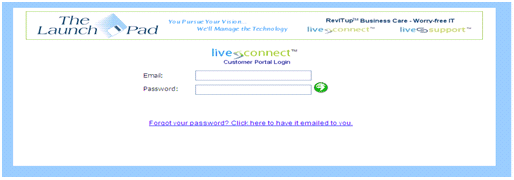
 The LiveConnectTM Customer Portal Login (Figure-1) can be accessed at www.revitupnow.com/support or anywhere on our website you see this
liveconnect icon. The portal is the most efficient way to create service
requests. Tickets created in portal are routed to the first available livesupport help desk team member and guarantee you the highest level of support. The LiveConnectTM Customer Portal Login (Figure-1) can be accessed at www.revitupnow.com/support or anywhere on our website you see this
liveconnect icon. The portal is the most efficient way to create service
requests. Tickets created in portal are routed to the first available livesupport help desk team member and guarantee you the highest level of support.
|
|
(Figure-1)
|
|
Outlined in this guide you will view a step by
step description on accessing the service from the web, as well as information on each service provided
Once you have navigated to the Portal Login Screen (Figure-1) you will be asked for a User name and Password. This information will be supplied to you by Randy Todd from The Launch Pad. You can request your portal login user name and password by e-mailing Randy at rtodd@launchpadonline.com
When you have typed in your specific User name
and Password that has been provided, you will securely be directed to your LiveConnect page (Figure-2). From this
page you will have access to several key technology management features:
- Ticket Creation and Status
- 24/7 Self-service creation of help
tickets. Tickets created are sent immediately to our dispatcher and a follow up call to setup a service time is then made to you.
- Gain a knowledge base of services performed from detailed technician descriptions.
- View status of project or service anytime.
- View Invoices.
- Review invoices from past services or product purchases.
- Access to Extensive Knowledgebase
- All service provided by The Launch Pad
is detailed in each instance and is available on the online customer portal for easy search based access.
- View Reports - See sample Executive Management Report
|
|
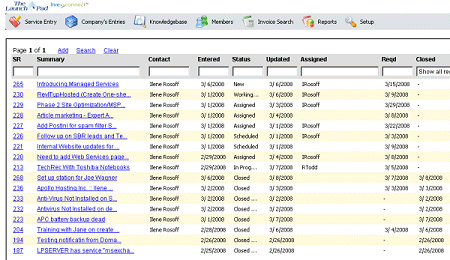
(Figure-2)
|
|
Creating a Service Ticket
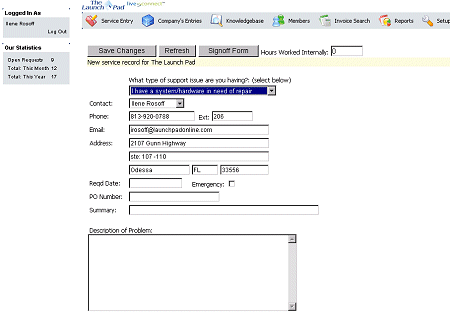
- Select "Service Entry" from the top menu bar in Figure-2.
- A new screen will come up. Figure-3.
- Make sure to select the "Type " of support issue you have in the first drop down box.
- Fill in all Open Boxes.
- In the "Description" filed please be as detailed as you can with your support issue.
- Once complete please select "Save Changes" just under the Menu Bar.
- Your ticket will be sent to The Launch Pad
support team and you will be contacted shortly after. You can view status and history of your service request anytime by logging in. You'll also
receive e-mail statuses and alerts and your service request moves through our system.
|
|
(Figure-3)
|
Interested in getting the Full Service Benefits of Being a RevITup™ Managed IT Services Customer: fixed monthly fee, 24x7 monitoring, immediate remote problem remediation and no downtime! - Take your IT support to the Next Level with RevITup™ Worry-Free IT
Start today with our Free 21 Point Network Audit & Technology Assessment
As a prospective customer, we offer a complimentary security audit to pin-point where you are
most vulnerable to virus infection, hacker attacks, and data loss. We'll also show you
how to stop spam from eating up your network resources without interfering with legitimate e-mails you want to receive.
To schedule your technology assessment and problem prevention audit , please contact us at 888-920-3450 ext 202 or e-mail support@launchpadonline.com.
|
|
RevITupTM Business Care Managed Service FAQ
1. Q. What size organization can benefit from the RevITup™ Business Care Program?
A. Any size organization can take advantage of the many benefits. Typically organizations with 5 desktops or more will reap
the terrific benefits and savings. We do have a special plan designed for one-person organizations. Contact us for details.
2. Q. Is there a commitment time for the RevITup™ Business Care agreement?
A. The contract is renewed on an annual basis and we do request your commit to 3 months so that you can properly evaluate the
benefits and we have to completely tune up and standardize your network. You can cancel after that time with 30 days notice.
3. Q. Besides knowing that all of my devices are being monitored and managed, what other benefits does my organization enjoy?
A. Our RevITup™ Business Care clients receive guaranteed response time and priority service when support or project work is needed. RevITup™ clients also received discounted support and project work, B2B web online store discounts, included help desk and onsite support, Microsoft updates and patch management, technology planning sessions and executive summary network health reporting. Backups, services, hardware, software and errors are monitored EVERDAY and Antivirus and Antispyware licenses are included FOREVER. No more costly annual renewals!
4. Q. What if we already have an IT manager or IT department?
A.
That's great. RevITup™ Business Care Basic is actually designed for organizations that have internal IT staff. We can still provide all of the backend monitoring and management features, Antivirus and Antispyware licensing and much more. Plus, we can make our monitoring tools, which include asset management and details on each workstation and server, a graphical view of each device on the network with its condition and one-click integrated remote login, available to your IT manager or department. It will significantly reduce costs and downtime and simplify IT for your organization. Instead of putting out fires, your IT staff can concentrate on technology projects that benefit your bottom line and improve your business processes.
5. Q. What's the process when a problem is discovered on our network, server or workstation?
A. All of our RevITup™ Business Care clients are monitored 24x7x365 via our software tools and network operations center. When any problem or error condition is detected, an alert is immediately generated to our monitoring software portal and remediated remotely by our support technicians. Any critical issue also results in an automatic page to a field services manager. The condition is remotely remediated and when the condition is returned to normal, the alert is closed. The idea is to resolve many little issues as they occur before they turn into big problems on the network or the system. If a condition requires onsite support or user intervention, our team will notify you immediately. All support incidents are tracked in our online system accessible to you at any time. Plus we can proactively run maintenance through our tools as well. For example, system defrags and temp file cleanups are scripted to run on a regular basis.
|
|
National Support, Help Desk and Multi-Location Managed Service Agreements
We also provide regional service contracts, systems installations and warranty services throughout the U.S. For more information, contact our Sales Team; sales@launchpadonline.com or 888-920-3450 x202. More information is also available on the Technical Support section of our site.
|
|
. . . . . . . . . . . . . . . . . . . . . . . . . . . . . . . . . . . . . . . . . . . . . . . . . . . . . . . . . . . . . . . . . . . . . . . . . . . . . . . . . . . . .
|
|
Have a specific project in mind?
Need a quote for volume pricing or software
licensing? Looking to install or upgrade your current network? What are your IT or Web challenges? The Launch Pad can help you get the ball rolling. We are
happy to provide you with an evaluation and no-cost proposal custom tailored for you. Request a Quote >>
|
|
. . . . . . . . . . . . . . . . . . . . . . . . . . . . . . . . . . . . . . . . . . . . . . . . . . . . . . . . . . . . . . . . . . . . . . . . . . . . . . . . . . . . .
|
|
|